Day 2: Understanding the Git Workflow

Brief Overview
On Day 2, we will cover:
The three stages of a Git project: Working Directory, Staging Area, and Repository.
The basic Git workflow: modifying files, staging changes, and committing changes.
Key Git commands:
git add,git commit, andgit status.
Detailed Explanation with Code
Understanding the Three Stages of a Git Project:
Working Directory: This is where you make changes to your files. It's the actual content of your project that you interact with.
Staging Area: This is where you place files that you want to include in your next commit. Think of it as a buffer between the working directory and the repository.
Repository: This is where Git permanently stores your changes as different versions of the project. Once you commit changes, they move from the staging area to the repository.
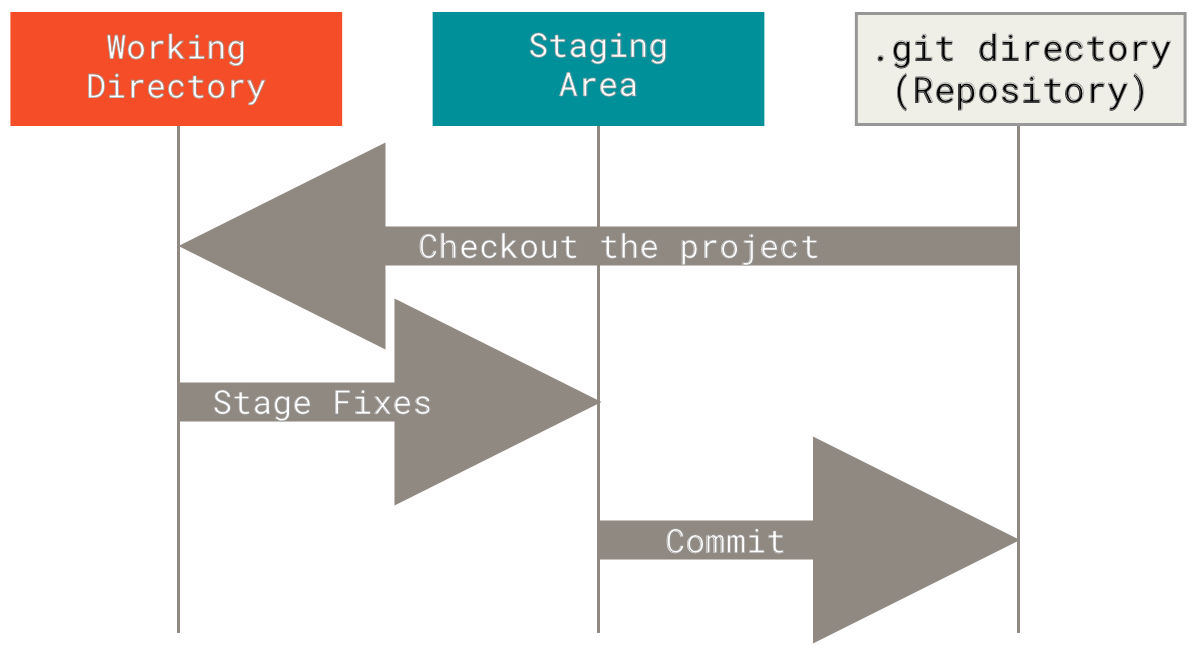
The Basic Git Workflow:
Modify Files in the Working Directory: Make changes to your files as needed.
Stage Changes: Add the modified files to the staging area using the
git addcommand.Commit Changes: Save the staged changes to the repository using the
git commitcommand.
Key Git Commands:
Check the Status of Your Repository: The
git statuscommand shows the state of the working directory and the staging area.git statusExample:
  echo "New content" >> hello.txt
  git status
Output:
  On branch master
  Changes not staged for commit:
    (use "git add <file>..." to update what will be committed)
    (use "git restore <file>..." to discard changes in working directory)
      modified:   hello.txt
Stage Changes: Use the
git addcommand to add modified files to the staging area. For adding all the filesgit add ..git add <file1> <file2> <file3>Example:
  git add hello.txt
  git status
Output:
  On branch master
  Changes to be committed:
    (use "git restore --staged <file>..." to unstage)
      modified:   hello.txt
Commit Changes: The
git commitcommand records the changes in the repository. Use the-mflag to add a commit message.git commit -m "Update hello.txt with new content"Output:
  [master a1b2c3d] Update hello.txt with new content
   1 file changed, 1 insertion(+)
Example Workflow:
Let's walk through an example workflow step-by-step.
Step 1: Initialize a New Git Repository:
 mkdir my-git-project
 cd my-git-project
 git init
Step 2: Create and Modify a File:
 echo "Hello, Git!" > hello.txt
 echo "This is a new line." >> hello.txt
Step 3: Check the Status of the Repository:
git statusOutput:
 On branch master
 No commits yet
 Untracked files:
   (use "git add <file>..." to include in what will be committed)
       hello.txt
Step 4: Stage the File:
git add hello.txtStep 5: Check the Status Again:
git statusOutput:
 On branch master
 No commits yet
 Changes to be committed:
   (use "git rm --cached <file>..." to unstage)
       new file:   hello.txt
Step 6: Commit the Changes:
git commit -m "Add hello.txt with initial content"Output:
 [master (root-commit) d1e8d3b] Add hello.txt with initial content
  1 file changed, 2 insertions(+)
  create mode 100644 hello.txt
Step 7: Modify the File Again:
echo "This is another new line." >> hello.txtStep 8: Check the Status Again:
git statusOutput:
 On branch master
 Changes not staged for commit:
   (use "git add <file>..." to update what will be committed)
   (use "git restore <file>..." to discard changes in working directory)
       modified:   hello.txt
Step 9: Stage the Changes:
git add hello.txtStep 10: Commit the Changes:
git commit -m "Update hello.txt with another new line"Output:
 [master a1b2c3d] Update hello.txt with another new line
  1 file changed, 1 insertion(+)
By the end of Day 2, readers should understand the basic Git workflow, including modifying files, staging changes, and committing changes. This knowledge is crucial for managing a project's history and collaborating with others using Git.


